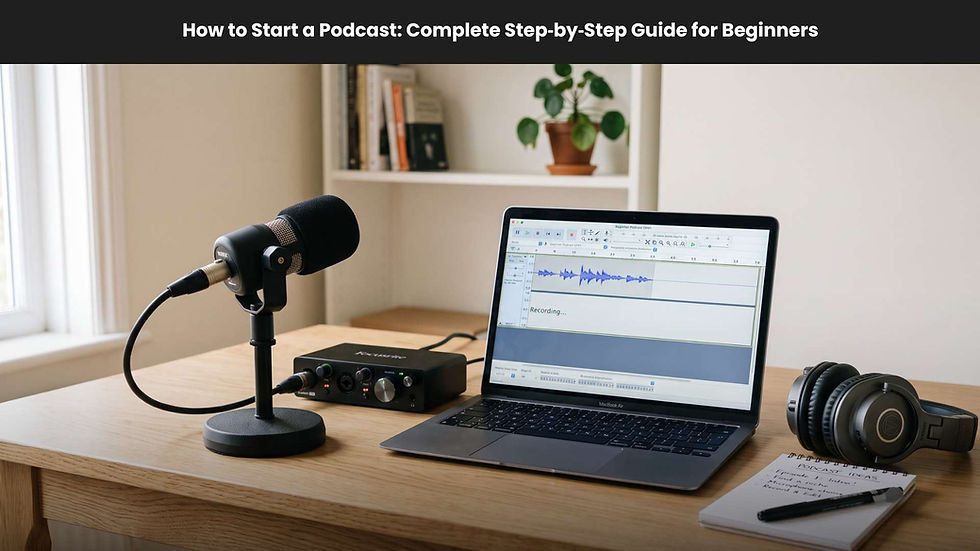
How to Record a Podcast: Best Podcast Recording Software & Tips

Updated: Jan 26

If you're wondering how to record a podcast without a studio, the good news is you can get professional results from home, a small office, or even your phone. In this guide, you’ll learn how to record a podcast step by step for remote, in-person, and mobile setups. You’ll also find the best podcast recording software for different budgets, plus a practical gear checklist and editing workflow to publish faster.
Whether you’re a beginner or upgrading your setup, this how-to guide breaks down what actually matters: clean audio, reliable recording, and an easy process your guests can follow. Let’s get you recording with confidence.
How to Record a Podcast: 3 Proven Methods
The best method depends on your guests, location, and gear. Here are the three approaches most creators use:
1) Remote podcast recording (most flexible)
What it is: You and your guest(s) join from different locations. Ideal for interviews and busy schedules.
Best tools: Dedicated remote platforms (e.g., Riverside), or video conferencing apps (Zoom, Google Meet) with built-in or local recording.
Why it works: You can book anyone, anywhere. With local recording, internet glitches won’t ruin your audio.
Trade-offs: Remote guests may vary in mic quality and environment.
2) In-person or hybrid recording (highest control)
What it is: You’re in the same room (in-person) or a mix of in-room and remote guests (hybrid).
Best tools: XLR microphones with an audio interface, closed-back headphones, and a DAW (GarageBand, Audacity, Reaper).
Why it works: You control mics, distance, and room sound. No internet issues.
Trade-offs: More gear and setup, especially with multiple mics.
3) Mobile recording on a phone or tablet (fast and portable)
What it is: Use your phone with an external mic and a recording app (e.g., Riverside mobile app).
Best for: Field interviews, travel content, or quick solo episodes.
Trade-offs: Built-in mics are limited; add a lavalier or handheld mic for best results.
Best Podcast Recording Software in 2025
Choosing podcast recording software depends on your use case. Here are excellent options by scenario.
Remote recording software (studio-quality, easy for guests)
Riverside: Local recording of each person’s audio and video, separate tracks, up to 4K video, uncompressed 48 kHz WAV, progressive upload so bad Wi‑Fi doesn’t tank quality. Ideal for interviews and hybrid shows.
Free podcast recording software (great starting point)
Audacity (Windows/Mac/Linux): Free, reliable, multi-track audio editor. Perfect for beginners who want to record and edit without cost.
GarageBand (Mac): Simple, friendly DAW for audio-only podcasts. Easy for Mac users; note there’s no native multi-cam video recording.
Pro DAWs for advanced editing
Adobe Audition (Mac/Windows): Powerful restoration tools, batch processing, and multitrack mixing.
Reaper (Mac/Windows): Affordable, customizable, and highly capable for multitrack sessions.
Logic Pro (Mac): Excellent for music-focused shows; also great for spoken word with advanced plugins.
Video conferencing tools (backup option)
Zoom and Google Meet: Simple and familiar, but quality is capped, and there’s no true local recording per participant. Better as a fallback if a guest can’t use a dedicated platform.
How to choose podcast software (selection criteria)
Local recording over cloud: Prefer platforms that record each person locally for maximum quality and reliability.
File formats: Aim for uncompressed WAV audio (not MP3) and at least 1080p video (4K if available).
Separate tracks: Using isolated tracks per guest enables faster editing and crosstalk cleanup.
Guest capacity and producer controls: Look for easy guest invites, green rooms/lobbies, and producer roles.
Device and mic compatibility: Confirm support for USB/XLR workflows and iOS/Android if you’ll record mobile.
Step-by-Step: How to Record a Podcast Remotely
Remote recording is the fastest way to book great guests. Below are four practical methods, from best quality to lowest friction.
Method 1 — Dedicated remote software (recommended)
This is the easiest path to studio-quality results.
1) Create your studio and project: Log in, create a new studio, and name your project.
2) Set audio and video: In the lobby, select your mic, headphones, and camera. Do a quick sound check.
3) Invite guests: Share a one-click invite link or send email invites.
4) Record: Hit Record. Each person is captured locally on their device and uploaded progressively.
5) Use built-in tools: Add a teleprompter/script, trigger sound effects, or share media for a polished session.
6) Export: Stop recording and export separate audio/video tracks for editing.
Pro tip: According to industry data, roughly 60% of company podcasts rely on dedicated podcasting software because of local recording, separate tracks, and fewer tech headaches.
Method 2 — Zoom or Google Meet (simple, good fallback)
Expect lower quality and no true per-guest local capture, but it’s simple.
Google Meet:
Start a call > Activities > Recording > Start recording.
Files auto-save to your Google Drive (Meet Recordings folder).
Zoom:
Settings > Recording to choose a save folder.
In the call, click Record; pause/stop as needed. Files appear after the meeting.
Network optimization tips:
Use Ethernet instead of Wi‑Fi.
Close unnecessary apps and cloud sync.
For audio-only, turn off video to save bandwidth.
Method 3 — Double-ender recording (highest quality, more work)
Each person records themselves locally while you talk over Zoom/Meet for reference.
1) Prep: Agree on recording apps (QuickTime, GarageBand, Reaper, or handheld recorders like Zoom H1n).
2) Sync spike: Do a countdown and clap at the start to create a sync marker.
3) Record locally: Everyone hits Record on their device, not just the call.
4) Collect files: Afterward, guests upload the raw WAV/MP4 files via Drive/Dropbox.
5) Edit and sync: Align spikes in your DAW or editor (Premiere Pro, Final Cut) and fine-tune.
Pitfalls: Big file transfers, manual syncing, and a higher chance of user errors.
Method 4 — Phone call recording (last resort but practical)
Simplest: Use a phone call recording app (e.g., Google Voice, TapeACall). You’ll get a single mixed track fast but heavily compressed and audio-only.
Higher quality: Route your phone into a mixer/interface (e.g., RØDECaster Pro) so your mic and the caller are on separate tracks. Use the right cable (USB‑C to Lightning for newer iPhones; USB‑C to USB‑C for most Androids). Still audio-only and more compressed than remote platforms.

Step-by-Step: How to Record a Podcast In Person (or Hybrid)
In-person gives you the most control over sound. Hybrid adds remote guests to the mix.
Set up your audio output (monitoring)
Wear closed-back, wired headphones to block noise and avoid Bluetooth latency.
Use a headphone amplifier so each person gets a clear, adjustable feed.
Set up your audio input (one mic per voice)
Use one mic per speaker for clarity. Dynamic mics reduce room noise; condensers capture more detail but require quieter spaces.
Multiple mics: Use an audio interface with enough inputs (e.g., Focusrite Scarlett 2i2 for two mics; larger models for more). Select the interface as your input/output in your recording software.
Separate tracks: Some remote platforms merge interface inputs into one stream. Workarounds:
Have each speaker join from their own device.
Record to an SD card on a mixer/recorder, then upload.
Use track-splitting software (e.g., Audio Hijack) to isolate channels.
Add video (optional)
Single camera: Frame a wide shot covering all speakers.
Multi-cam: Use a switcher (e.g., Blackmagic ATEM Mini) and set the switcher as your video input.
Separate feeds: Let each person join remotely from their own camera to capture isolated video tracks.
How to Record a Podcast on iPhone or Android
Your phone can be a studio with the right accessories.
Fast mobile setup
1) Use an external mic: A USB or lightning/USB‑C lavalier or handheld mic drastically improves sound.
2) Stabilize: Mount your phone on a tripod or clip for steady video and consistent distance.
3) Record in-app: Use a podcast recording app with local capture and separate tracks where possible (e.g., Riverside mobile app). Invite your guests and hit Record. Files sync to your account for desktop editing.
Use your phone as a camera for video podcasts
For sharp video, use the rear camera. A small mirror or monitor view helps with framing.
On Mac, Continuity Camera lets you use your iPhone as a high-quality webcam.
Join your studio on both desktop and phone to capture a secondary angle.
Essential Podcast Gear Checklist (Beginner to Pro)
Getting the right gear helps, but you don’t need everything on day one.
Microphones
Dynamic vs condenser: Dynamics reject more room noise; condensers pick up more detail but also more ambience.
USB vs XLR: USB is plug-and-play for beginners; XLR scales better for multi-mic setups.
Great picks:
Samson Q2U: Hybrid USB/XLR mic starts simple, upgrade later.
Shure MV7+: Pro-quality sound with onboard controls and USB/XLR flexibility.
Headphones
Choose closed-back, wired options to avoid bleed and latency.
Aim for a 20–20,000 Hz response range.
Budget-friendly: Shure SE215 PRO. In a pinch, basic earbuds will do.
Cameras
Starter: Logitech C920 webcam for solid 1080p.
Pro look: Sony A6400 for excellent image quality and low-light performance.
Helpful accessories
Mic arm or stand: Stable positioning improves tone and comfort.
Pop filter/windscreen: Reduces plosives (“p” and “b” sounds).
Shock mount: Isolates the mic from desk vibrations.
Lighting: A simple LED panel kit beats relying on daylight.
Pro Tips for Better Podcast Recordings
Choose a quiet space: Soft furnishings (carpets, curtains) absorb reflections; avoid fans and noisy appliances.
Nail mic technique: Keep the mic 3–8 inches from your mouth at a slight 45° angle. Use a pop filter.
Wear headphones: Prevents feedback and bleed, especially in remote interviews.
Prep your guest: Send a brief outline and tech checklist. Ask for a quiet room and a headset or earbuds.
Mark mistakes: Clap or say “marker” so you can spot the spike in the waveform and edit quickly.
Consider video even for audio-only: Seeing each other improves conversational chemistry.
What to Do After Recording: Edit, Enhance, and Repurpose
Editing doesn’t need to take hours if you use the right tools and workflow.
Edit fast with transcripts and AI helpers
Trim tangents, long pauses, and repeated questions.
Use text-based editing and filler-word removal to clean “uhs” and “ums” in a few clicks.
If you misspoke on a line, some tools let you type a fix and generate a seamless replacement in your voice.
Clean your audio
Remove background noise and room hum.
Level loudness across speakers for a consistent listening experience.
Use EQ and gentle compression for clarity and polish.
Add finishing touches
Music and SFX: Intro/outro themes and light transition cues.
Visual overlays: Lower thirds, images, or b‑roll for video podcasts.
Captions: Boost engagement and accessibility.
Repurpose to grow faster
Auto-generate short clips for social.
Turn episodes into blog posts, newsletters, and highlight reels.
If you’re hosted on Spotify for Creators, you can access integrated Riverside “Magic Tools” for AI-powered editing and remote recording directly in-browser.
For more strategies on using your podcast inside a full content marketing machine, read Podcasting Companies: The Ultimate Content Marketing Strategy for Businesses
FAQs: How to Record a Podcast
How long does it take to record a podcast?
Typically, 1.5–2x the final episode length, including setup and brief retakes. A 30-minute show often takes 45–60 minutes to record.
What’s the easiest way to record a podcast?
Use a dedicated remote platform with local recording and one-click guest links. You’ll capture studio-quality audio without a complicated setup.
Can I record a podcast for free?
Yes. Try Audacity or GarageBand for recording and editing. Many remote platforms offer free tiers, too, so you can start without paying.
What’s the best app for remote podcast recording?
Look for local recording, separate tracks, and uncompressed audio/video. Platforms like Riverside check all those boxes.
How much does it cost to record a podcast?
You can start for free with basic software and built-in gear. For a solid beginner upgrade, budget $50–100 for a mic, $15–30 for a light, and $40–60 for headphones. You can scale to pro cameras, lighting, and acoustic treatment over time.
Do I need a computer to record a podcast?
Not strictly. Modern smartphones plus a quality external mic and a capable mobile app can handle recording then you can edit on a desktop later if you prefer.
Conclusion:
Learning how to record a podcast is less about expensive studios and more about smart choices: the right method for your guests, a quiet space, solid mic technique, and reliable podcast recording software that captures local, separate tracks. Start with the workflow that fits your situation, remote, in-person, or mobile and upgrade gear as your show grows. With a simple, repeatable process, you’ll publish great-sounding episodes consistently and build an audience that sticks around.

Whether you're learning how to record a podcast, how to record a podcast remotely, or how to record a podcast on iPhone, we'll match your goals and budget to the right gear and capture methods so you get clean, reliable tracks every time.